Assigning Temporary Wristbands
Temporary wristbands are wristbands that stay assigned for only 12 hours.
Procedure
Navigate to the Temporary Wristband Screen
- Begin by navigating to Sanibit in your web browser
Each organization has its own link to Sanibit. For example, if your organization is named ULH, you can navigate to ulh.sanibit.com
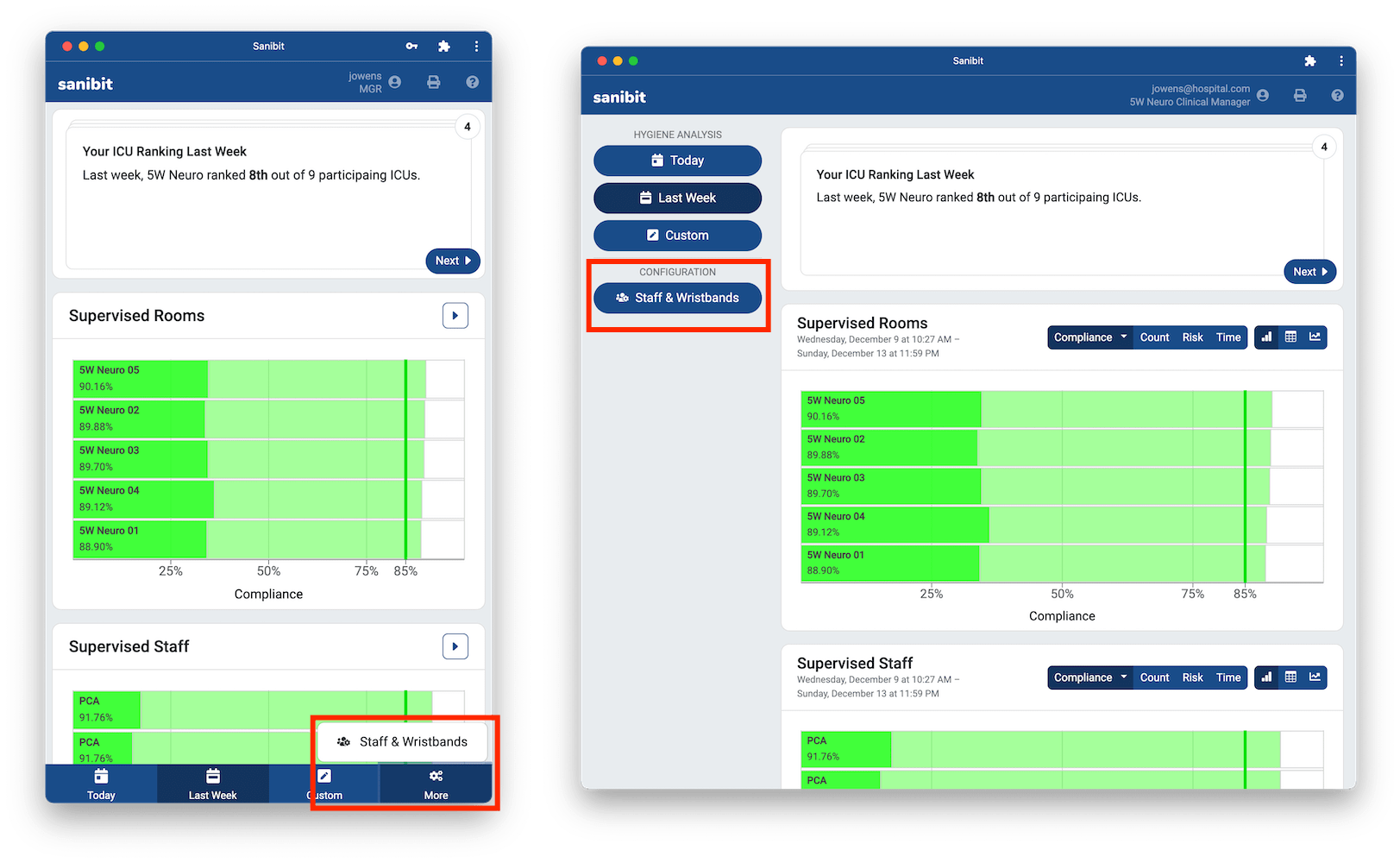
- Next, select "Staff & Wristbands" from your navigation menu. On mobile, you'll find this under the "More" menu in the lower-left of your screen. On desktop, this will be on the left side of your screen.
Selecting a Temporary Wristband
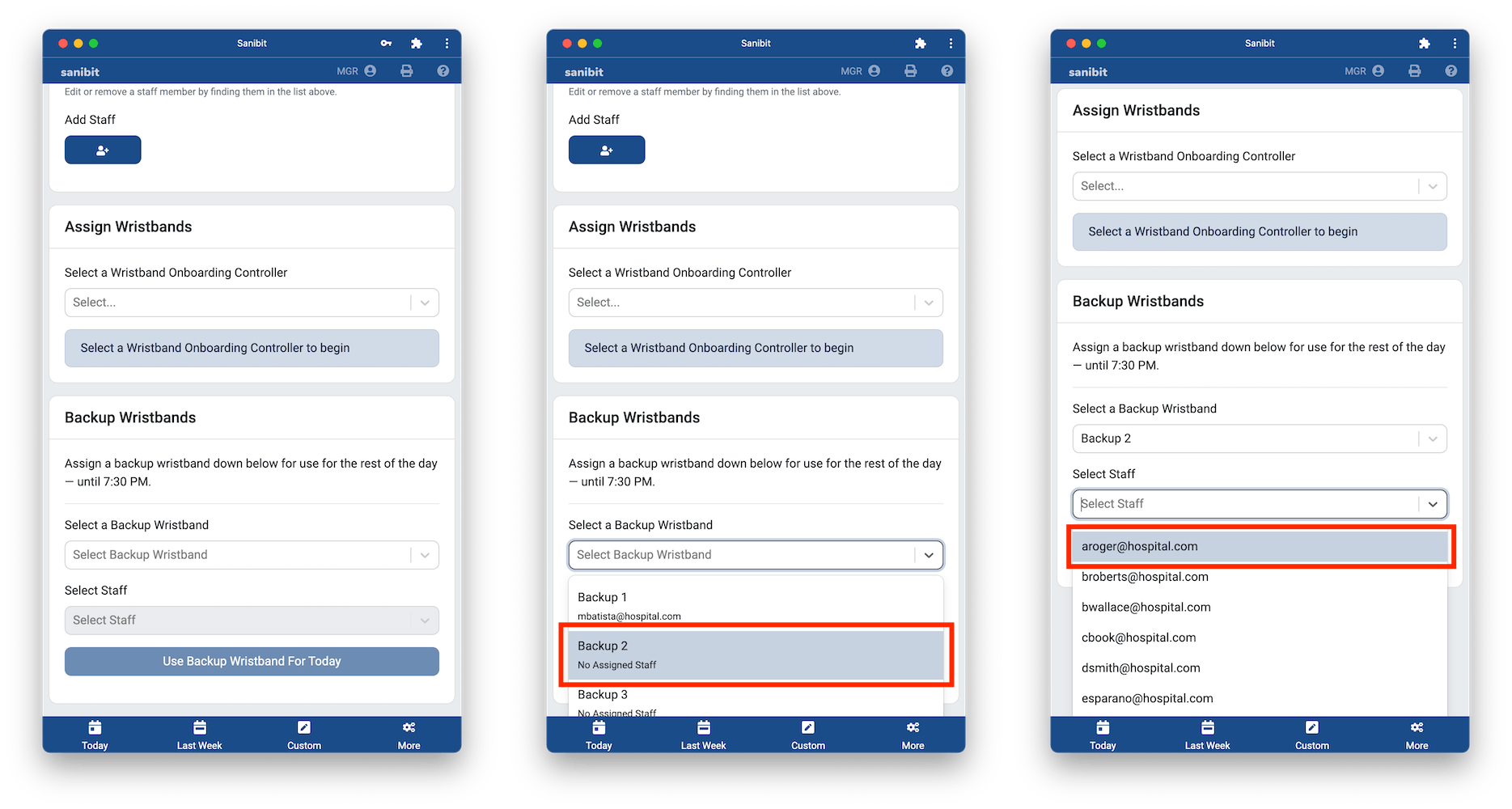
- Now that you've navigated to the "Staff & Wristbands" screen, scroll to the bottom where you'll find the "Temporary Wristbads" card. There, you can select the temporary wristband you are trying to assign, as well as the staff you are assigning to.
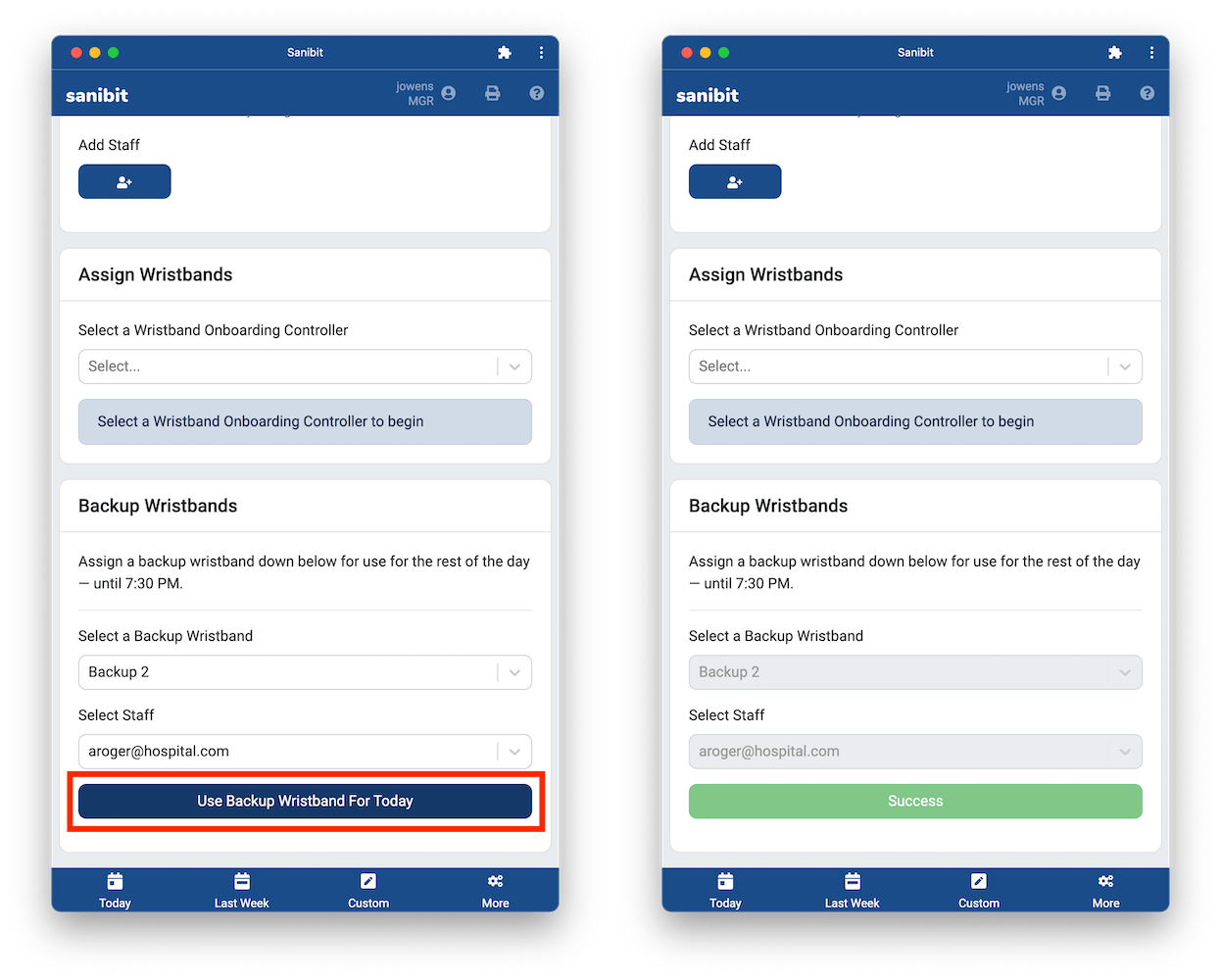
- Once you've selected a wristband and staff from the list, you'll be able to press "Use Temporary Wristband for 12 hours". After clicking it, you'll see "Success". That's it!
Note: This wristband will log events for the selected staff for only the next 12 hours. You'll have to repeat this process for every day you want a temporary wristband used.
Note: Selecting a Wristband Already In Use
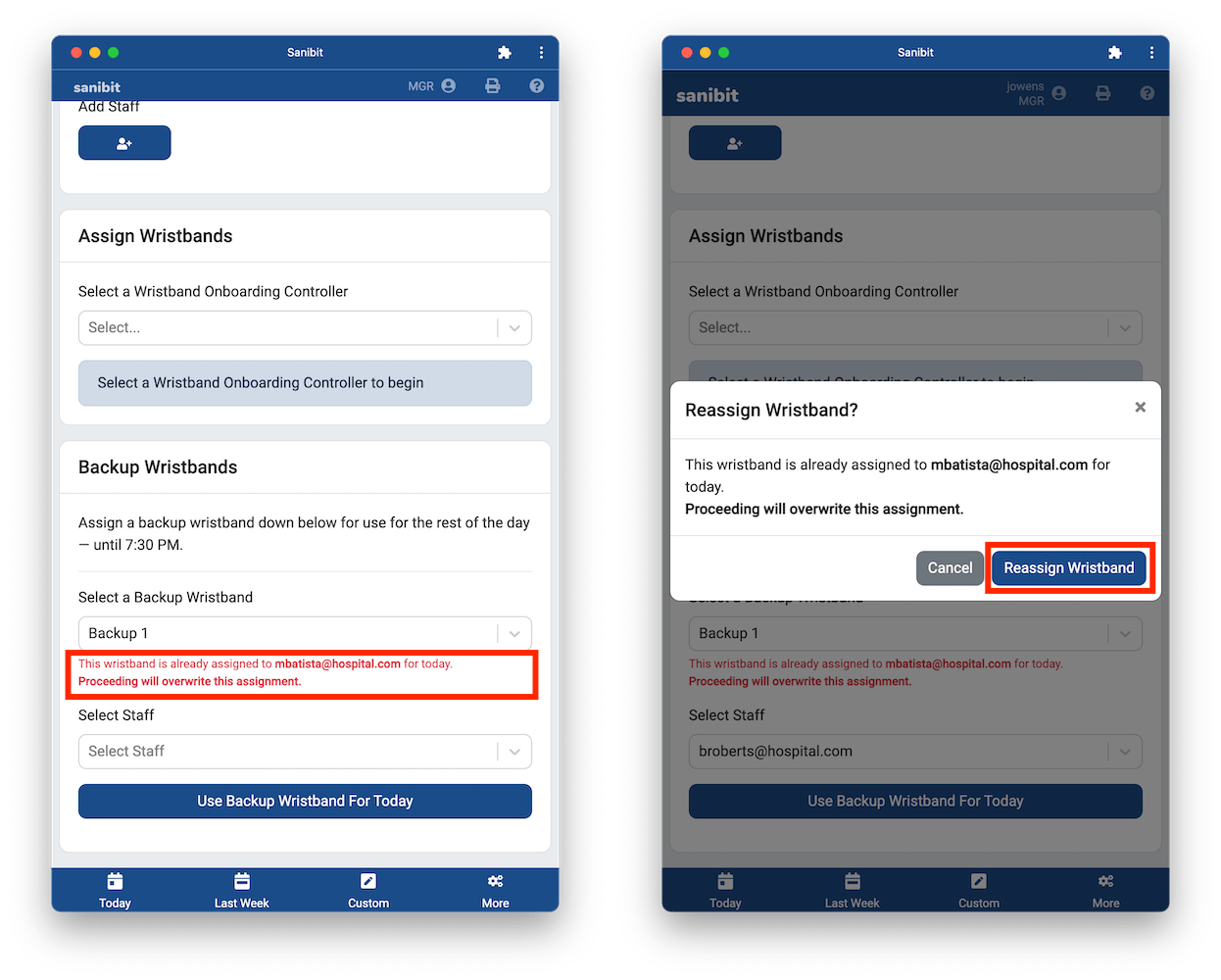
If the wristband you've selected is already in use today, you'll see a notice on screen: "This wristband is already assigned for 12 hours. Proceeding will overwrite this assignment."
This means that, earlier today, some previous provider has already claimed this temporary wristband for the day. You may still use the temporary wristband, but it will no longer work today for the previous provider.
When prompted, click "Reassign Wristband" to confirm this operation.